cnshopper QC Image Zoom: Spreadsheet vs Google Sheets
cnshopper QC Image Zoom: Spreadsheet vs Google Sheets
cnshopper QC Image Zoom: Spreadsheet vs Google Sheets
When you're ready to research Chinese products through cn-shopper.com, the most important use of QC photos isn't "whether they look clear"—it's to help you make a specific judgment: whether the upper, stitching, hardware, and obvious flaws have enough evidence to keep, hold, or request additional photos.
This article focuses on image detail checking. It doesn't treat blurry screenshots as quality proof, nor does it assume that the website, spreadsheet, or product page has already provided information that isn't shown. After reading, you should be able to do three things: locate the QC photo source, zoom in on key areas, and record your observations as trackable issues. If you don't have a product link, order number, or publicly viewable QC photos, this article isn't suitable for directly judging product quality.
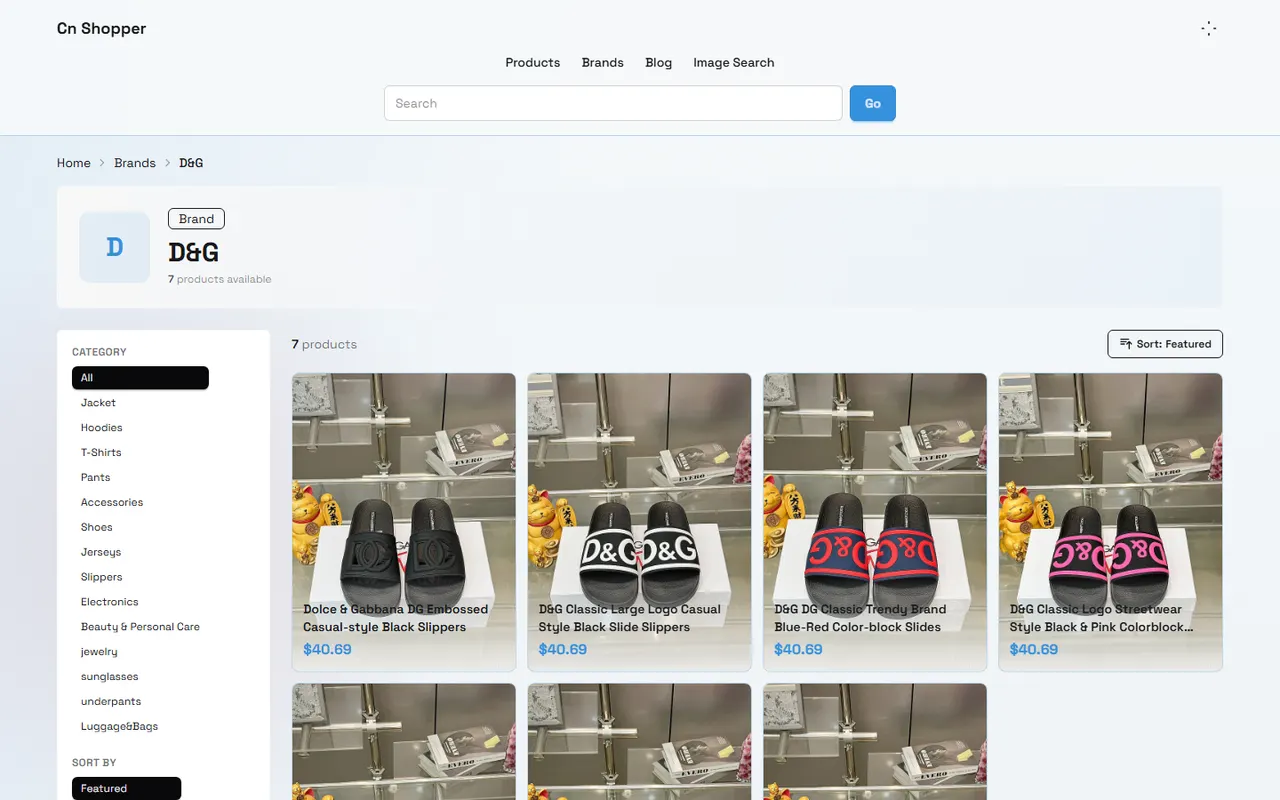
Image: Screenshot of the cn-shopper.com brand page. The screenshot shows the website's product categories, brand filters, sorting, and product list; it cannot independently prove that a specific product has QC photos, nor can it prove that the photos necessarily offer original image downloads or high-magnification zoom.
Define the checking task for zooming in on QC photos
Before zooming in on QC photos, write down exactly what you need to verify. Common tasks include:
Whether the upper has obvious scratches, color differences, dents, or stains.
Whether the stitching has skipped stitches, broken threads, obvious misalignment, or fraying edges.
Whether the hardware has scratches, oxidation, fading, looseness, or abnormal mounting position.
Whether there are visible differences between left and right shoes, different panels, or the same detail.
Whether the photos are sufficient to support a decision, or if they only indicate "insufficient evidence."
The goal of zooming is to improve visibility, not to turn low-resolution images into real details. Mosaics, sharpened edges, or compression noise that appear after zooming cannot be directly treated as product flaws. 🧐
It's recommended to establish a minimum checking sequence: overall appearance, key structure, suspected issues, left-right comparison, evidence conclusion. This helps avoid focusing on only one area and overlooking the overall product condition or misjudgments caused by shooting angles.
Image preview path in cnshopper website-style spreadsheet
Currently visible information on cn-shopper.com includes Home, Products, Brands, Image Search, Blog, category filters, sorting, and product lists. The public screenshot shows 7 products under the D&G brand, and the product list displays names and prices; this page information is suitable for locating products but cannot replace QC records for a specific order.
If your product data is presented in a website-style spreadsheet or similar list, you can follow these steps:
First confirm the product name, category, and product link corresponding to each row.
Check whether the image field is a thumbnail, image URL, attachment, or plain text.
Click the thumbnail or image URL to see if it opens a standalone preview page.
On the preview page, prioritize using the browser's built-in zoom to avoid repeatedly clicking and opening multiple pages.
Record whether the image shows key areas such as the upper, sole, stitching, inner label, and hardware.
Record "issues seen" and "areas not photographed" separately; do not write "no flaws" for areas that were not photographed.
If the image only shows as a small thumbnail, or clicking it leads to a blank page, broken link, or login page, mark the result as "image cannot be verified" rather than directly judging the product as acceptable. The website's product list, brand categories, and price display only help locate products; they cannot automatically constitute QC evidence.
How to open QC photo external links in Google Sheets
Google Sheets is better suited for keeping image links, verification conclusions, and reshooting requirements in the same editable sheet. When using it, first confirm that the links belong to files or pages you have permission to access, and be careful not to publicly share screenshots that include order numbers, addresses, phone numbers, or payment information.
Common workflow:
Keep the original image URL in the product row; don't keep only copied screenshots.
Open the image URL separately to confirm whether it's still valid and whether login permission is required.
If the sheet uses image functions or embedded images, check the original link first, then determine whether the display area is compressed.
After zooming in enough to see target details, inspect the upper, stitching, and hardware separately.
In adjacent columns, record the location, observed issue, evidence level, and next action.
After saving, reopen the sheet to confirm that records and links haven't been lost.
Website-style spreadsheets and Google Sheets are not quality judgment standards. The main differences lie in image location, external link management, and record collaboration. What ultimately determines the conclusion is the image source, clarity, shooting angle, and whether it covers the areas that need to be checked.
Check Item | Website-style Spreadsheet | Google Sheets | Key Judgment |
|---|---|---|---|
Image location | Usually depends on product row, image field, or preview entry | Can save external links and notes next to cells | Can you return to the corresponding product? |
Zoom method | Depends on website previewer and original image size | Depends on external link, embedding method, and browser | Does zooming produce real visible details? |
Issue recording | Suitable for filling in existing fields | Suitable for adding location, evidence, and action columns | Is a trackable record kept? |
Permission risk | May be affected by website login status | May be affected by file sharing permissions | Will order or personal information be exposed? |
Recording method for comparing upper, stitching, and hardware details
After zooming, don't just write "good quality" or "can't see clearly." Such conclusions don't help with follow-up and don't explain what you actually saw. It's recommended to use the format "part + observation + evidence limitation + action."
For example:
Upper: A light reflection appears on the front outer side of the right shoe; cannot confirm whether it's a crease, stain, or lighting reflection; request a close-up in natural light.
Stitching: Partial stitching visible on the edge of the tongue, but image resolution is insufficient to determine if there are skipped stitches; hold for confirmation.
Hardware: Zipper pull visible, but the connection is blocked; cannot determine if it's loose; request front and side photos.
Left-right comparison: The two shoes were photographed at different angles; cannot judge color or shape differences based on this.
When comparing, try to maintain the same standard: similar zoom ratio, similar lighting, same part, same viewing direction. If two images differ greatly in distance, angle, or brightness, the conclusion should be downgraded to "cannot compare." 📏
Evidence boundaries for image clarity, zoom, and original source
Image clarity should be judged from at least four aspects:
Original size: Enlarging a small image usually only shows more pixel blocks, not new details.
Compression level: Obvious JPEG blocks, sharpened edges, and color banding may come from compression, not the product itself.
Shooting angle: Some angles cannot show the sole edge, inner stitching, or back of hardware.
Light reflection: Glossy, metallic, and dark materials are prone to highlights; don't treat reflection points as scratches.
Image source also needs to be recorded separately. Original QC photos, website thumbnails, user screenshots, and forwarded images from chat apps have different evidence strength. If you only have a recompressed screenshot, write "source is screenshot" rather than describing it as the original.
The image used in this article is a public brand page screenshot from cn-shopper.com, only for illustrating the visible structure of the product list and filter page. It does not represent QC photos for a specific order, nor does it prove any product's material, stock, size, seller information, or after-sales results.
Create an issue tracking table after zoomed inspection
It's recommended to keep at least the following fields:
Product name and product link.
Image source and access date.
Checked part.
Observed phenomenon.
Evidence level: clear, partially clear, cannot determine.
Whether reshooting is needed.
Corresponding next action.
You can use the following simplified format:
Part | Observation | Evidence Level | Next Step |
|---|---|---|---|
Upper | Suspected stain on right side, but affected by reflection | Partially clear | Request close-up in natural light |
Stitching | Partial stitching visible, edge cropped | Cannot determine | Request full edge photo |
Hardware | Front visible, back and connection not photographed | Partially clear | Request front, side, and back photos |
"Cannot determine" in the record is not a failure; it's an important result to avoid overpromising. It helps you clearly hand off the issue to the next verification step instead of filling evidence gaps with guesses.
Which blurry details need reshooting instead of guessing
Prioritize reshooting when:
Key areas are cropped, blocked, or in shadow.
The shooting distance for left and right items is obviously different.
After zooming, there's only noise and no recognizable texture or edges.
Reflection and stains, wrinkles and damage cannot be distinguished.
Stitching, hardware connections, or sole edges lack complete frames.
Image date, product correspondence, or source is unclear.
Reshoot requests should be as specific as possible, e.g., "Please reshoot the front outer side of the right shoe in natural light, at a moderate distance, and include an overall photo," rather than just "make it clearer." If the issue involves personal information, cover order numbers, addresses, phone numbers, and payment details during reshooting. 🔒
Decisions after checking: keep, hold, or request evidence
After zoomed inspection, products can be categorized into three types:
Keep: Key areas are clear, no obvious issues requiring further processing, and the image source and product correspondence are clear.
Hold: There are suspected issues, but current images are insufficient to confirm; need to wait for reshot or higher-quality originals.
Request evidence: The product itself may not have problems, but key areas like upper, stitching, hardware haven't been photographed, so a complete judgment cannot be formed.
The value of this process is turning "can't see clearly" into actionable tasks. It cannot confirm product authenticity, material, stock, seller promises, shipping costs, taxes, or return policies; these need to be checked separately in the relevant product, order, and official policy information, and recorded with the verification date and applicable conditions.
If suspected flaws are found after zooming, save the original image, access date, and issue location before deciding whether to proceed. Don't create definitive conclusions through repeated zooming, sharpening, or guessing. Ultimately, base your keep, hold, or request evidence decision on traceable image evidence and clear reshooting requirements.
Agent Platform Shopping FAQ
1. How to evaluate product quality on cn-shopper.com?
To judge product quality, you should look at quality check photos rather than relying solely on factory images, which are often retouched. Before placing an actual order, use QC photos to verify whether the product meets your specific requirements for details.
Also, be cautious about buying products at very low prices; their quality is usually not good.
2. Why doesn't cn-shopper.com use Google Sheets?
Google Sheets is only suitable for tables with very few products. As the number of products increases, loading becomes extremely slow and the system lags severely. Especially on mobile devices, the visual experience is poor and finding products is inconvenient. For the same set of products, the spreadsheet website loads faster and offers a better visual experience.
3. Which platform offers the best coupons on cn-shopper.com?
I recommend Kakobuy because it currently offers a $15 discount code with no minimum purchase requirement. This is great value for users ordering small packages. The promo code is kakobuy888.
4. Is the cn-shopper.com spreadsheet website safe?
This website does not collect any personal information; it serves only as a product catalog for the agent platform. All transactions are conducted on the agent platform.
5. What types of products are available on cn-shopper.com?
The website offers a wide range of product categories, including shoes, T-shirts, sweaters, hoodies, jeans, sweatpants, shorts, board shorts, factory clearance items, down jackets, baseball shirts, shirts, hats, jewelry, bags, electronics, sunglasses, socks, underwear, and trendy collectibles.
Browse our latest products and find your next favorite item.